Personal Suite guide
Nine private tools in one suite — how to install them, subscribe, protect your data and keep everything in sync.
1. Install or open the suite
You can start in the browser right now, or download a desktop or Android build.
- Web — open api.personal.valzexa.com. No install; same account and data as the Cloud edition.
- Windows Local — download
personal-suite.exe. Data stays on your device and never touches a server. Fully offline. - Windows Cloud — download
personal-suite-cloud.exe. Cloud storage with multi-device sync. - Android — download
personal.apkfrom the Downloads page.
2. The nine apps
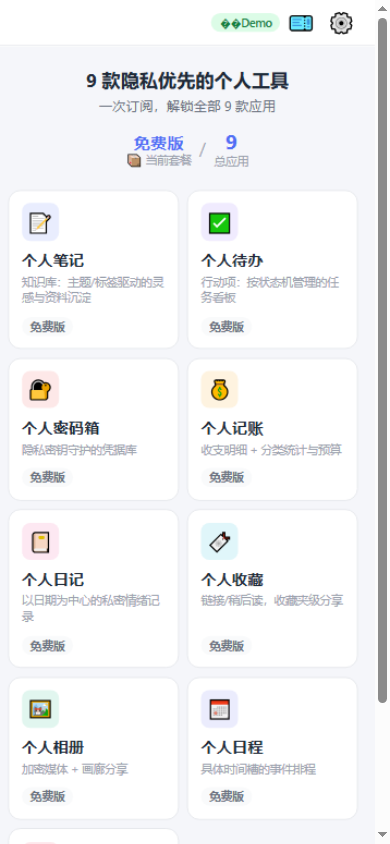
Each app follows the same rhythm — record, organise, search, protect — so learning one teaches you all of them.
| App | What it does |
|---|---|
| 📝 Notes | Markdown notes with topics, tags and [[wiki links]]; per-item privacy. |
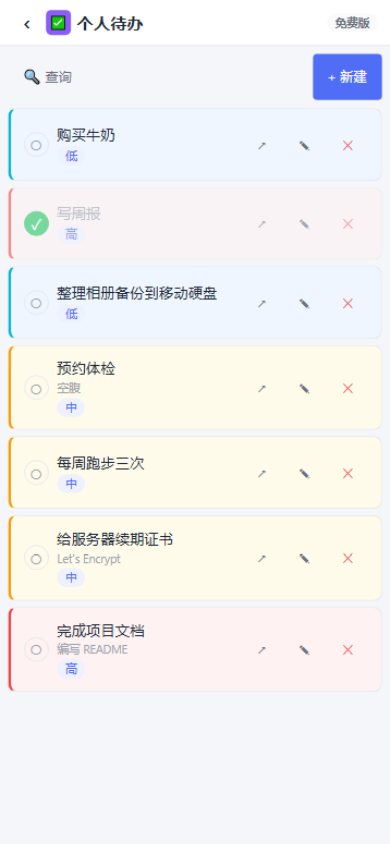
| ✅ Tasks | A to-do → in progress → done board with priorities and due dates. |
| 🔐 Vault | A zero-knowledge store for logins, cards, IDs, Wi-Fi and notes. |
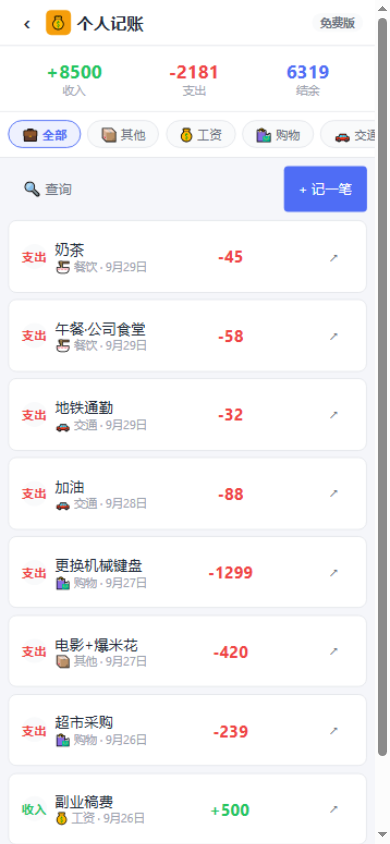
| 💰 Ledger | Income and expenses with custom categories and a monthly overview. |
| 📔 Journal | Private-by-default diary with mood, weather and tags. |
| 🔖 Bookmarks | Save links into groups with tags and read-later flags. |
| 🖼️ Album | An encrypted media library with categories and private photos. |
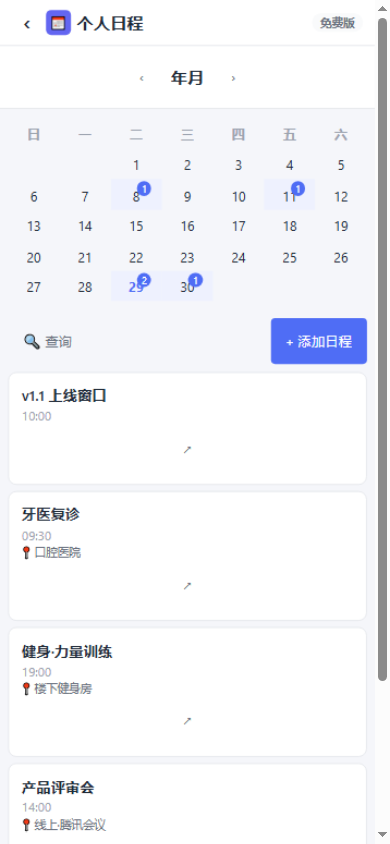
| 📅 Calendar | Month and day views with times, locations, notes and reminders. |
| ❤️ Health | Track weight, blood pressure, heart rate and blood sugar with charts. |
3. Subscribe and unlock
The free plan is available forever and opens all nine apps, but limits each to 9 records and 3 categories, with no backup or cloud sync. A subscription removes every limit.
- Open the suite and go to Subscription.
- Choose a term from the grid (1, 2, 3 or 6 months, or 1, 2, 3 or 5 years). Total price = monthly price × term.
- Pay online; the subscription activates immediately and all nine apps unlock.
4. The privacy passkey
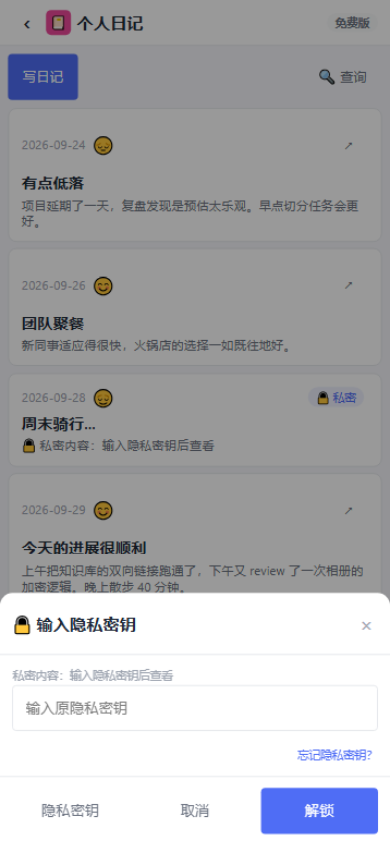
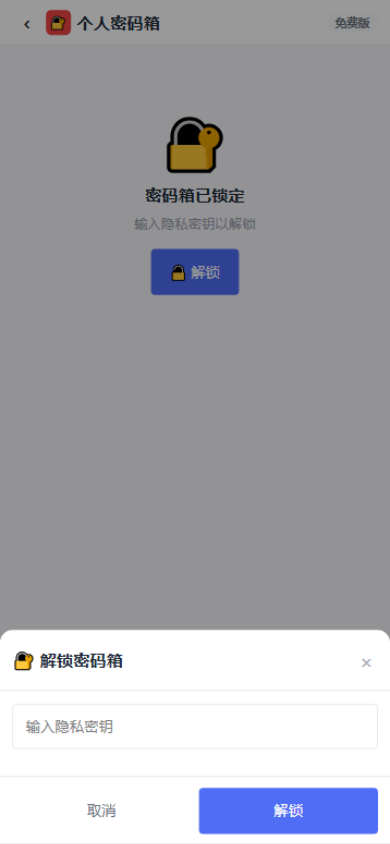
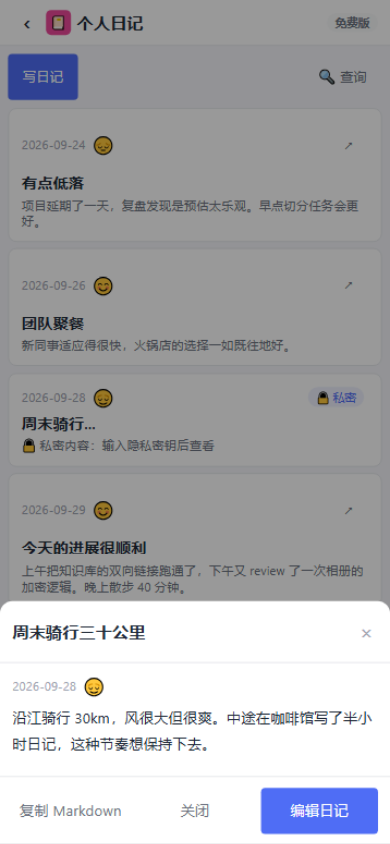
All apps share one passkey. Private content asks for it every time it's viewed — there is no session-level unlock. The passkey check is stored only as an irreversible hash, and works across your devices.
- Forgot your passkey? Verify your account password and set a new one — your existing data is not affected.
- Private note bodies, journals, bookmark links, album images, health values and vault fields are encrypted before storage.
- The vault gates the whole box, masks every list and clears the clipboard 10 seconds after a copy. Vault items can never be shared.
5. Sync between devices
The Android app and the Cloud / Web editions use the same account, so records, categories and subscription status sync in real time. Write a journal entry on your phone and it's there when you sign in on your desktop — and vice versa.
The Local edition keeps data on your machine by design, so it doesn't sync automatically. To move it, export a backup file and import it on the other device.
6. Backup and restore
Members can export all data to a single backup file and import it to restore. On mobile the file is written to your system downloads folder; on desktop you choose the location.
Common questions
Do I pay for each of the nine apps?
No — one subscription or licence unlocks all nine, including future additions.
Does the Cloud edition work offline?
The Cloud edition needs a connection for storage and subscription checks. If you want full offline use, choose the Local edition.
What happens when a subscription expires?
Your account returns to the free plan. Your data is fully retained and viewable; only new records are limited by the free quotas. Renewing restores everything immediately.
Can I get a refund?
Subscriptions don't include refunds once they take effect (this is shown clearly on the in-app subscription page), so pick the term you need. Unpaid orders can be cancelled any time from My orders.