ShopSuite guide
Set up your store, choose an edition, activate a licence or subscription, take bookings online and keep your data safe.
1. Pick an edition
ShopSuite comes in two paid editions plus a free cloud plan. All of them include every one of the 40 industry apps.
- Desktop Edition — a licence bought by term. Data stays on your computer and works offline. Does not include online booking or the Android app.
- Cloud Edition — a monthly subscription with cloud storage, multi-device sync and multi-store support. Online booking is included from the Advanced plan up, and the Android app is part of the subscription.
- Free plan — a Cloud Edition plan with small quotas (19 products, 19 customers, 19 staff, 19 orders per month) that never expires.
2. Set up the Cloud Edition
- Open api.app.valzexa.com and sign up. The free plan works immediately.
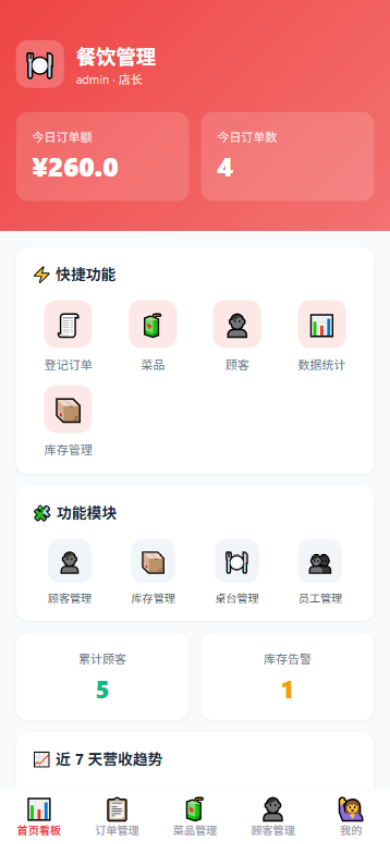
- On first use, choose your industry — the interface, wording and modules adapt automatically.
- Add your products or services, staff and customers.
- When you need more, open Settings → Plans and upgrade (upgrades take effect instantly).
- Install the Android app or open the mobile web app and sign in — data syncs in real time.
3. Turn on online booking
Online booking lets customers reserve without an account. It is enabled automatically on the Advanced plan and above.
- In the console, go to Settings → Online booking and generate a booking QR code and short link.
- Share the link, or print the QR code and place it in your shop.
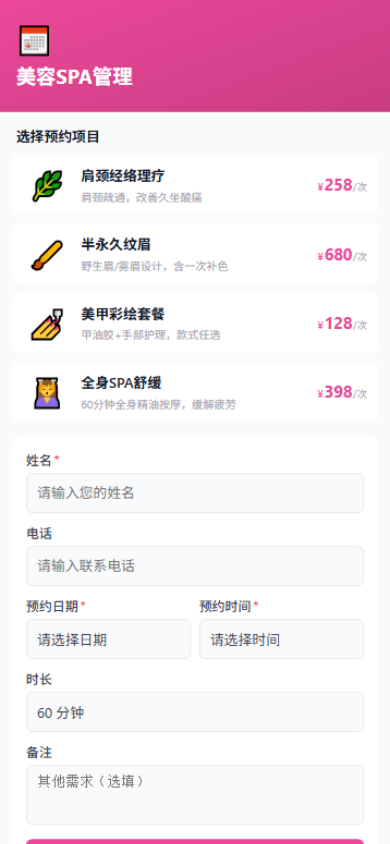
- Customers open the booking page, choose a service and submit their name, phone, date and time.
- Each booking drops into your Bookings list with an "online" tag, ready to confirm.
There's no cap on the number of bookings, and they don't count against your plan quota.
4. Install and activate the Desktop Edition
- Download ShopSuite.exe from the Downloads page and run it. No installation dependencies are required.
- On first launch, choose your industry app.
- Open the activation screen, choose a licence term (1 month to 5 years) and pay online.
- Paste the licence key you receive into Activation and confirm while connected.
- Start working — the key activates all 40 industry apps.
5. Back up and restore
Desktop Edition data lives on your machine, so it's worth backing up.
- Open the Cloud backup screen and sign in with your backup account.
- Tap Back up to cloud to store a copy on the licence server.
- On a new computer, install ShopSuite and choose Restore to pull your data back, then activate with a key for that device.
Cloud Edition data is backed up automatically and follows your account, so signing in on any device restores it.
Common questions
Licence key doesn't match the device?
A licence key is bound to one machine. Copy the machine code from the new device and contact support to re-issue.
Will I lose data when a licence expires?
No. Desktop data is retained for 30 days after expiry; renew and reactivate to continue. Cloud data is retained and restored as soon as you renew.
Can I upgrade or downgrade a plan?
You can renew and upgrade at any time; upgrades take effect immediately. Downgrades are not supported.
Can I get a refund?
Yes — a 7-day money-back window applies to both cloud subscriptions and desktop licences, once per subscription. See Payments & refunds.
How many computers can one licence cover?
One licence key covers one machine. For multiple devices, buy a licence for each.